AutoSwitch KVM

For one desk, two computers, and a KVM switch

Press the KVM button.
Your devices follow.

AutoSwitch KVM moves your Bluetooth keyboard, mouse and trackpad to whichever computer your KVM switch picks. Apple Magic accessories, Logitech Easy-Switch keyboards and mice, and more. No Bluetooth settings. No re-pairing. No channel keys. You just switch.

Free · macOS 13+ · Windows 10 & 11 · No account, no tracking

Mac
PC
Trackpad
Keyboard
Go on, press the KVM button. The trackpad and keyboard are with the Mac.

Works with

Two kinds of devices, switched two ways

  • Apple Magic Trackpad, Keyboard & Mouse

    They only pair with one computer at a time. AutoSwitch removes the pairing on the computer you leave and pairs again on the one you arrive at, in a few seconds.

    Hands off by pairing
    Mac ✓ · Windows ✓

  • Logitech Easy-Switch keyboards & mice

    The K380 and other Easy-Switch devices keep a channel per computer. AutoSwitch tells the device to hop to the other computer's channel, and finds that channel by itself.

    Switches channel on request
    Mac ✓ · Windows ✓

  • Everything else

    ZMK keyboards, game controllers, headphones: AutoSwitch tells you what's possible for each one, shows its status, and points you to the easy fixes (like a USB adapter on the KVM).

    See the device guide →

The problem

The Bluetooth shuffle

A KVM switch shares your monitor, keyboard and mouse between two computers. Plugged-in things switch along. Bluetooth things don't. Some only pair with one computer at a time (hello, Magic Trackpad); others want you to press a channel key on every single device. So every switch goes something like this:

  1. 1

    Open Bluetooth settings

    On the computer you're leaving. Find your trackpad, keyboard or mouse in the list.

  2. 2

    Forget the device

    "Are you sure?" Yes. It's fine. It's not personal.

  3. 3

    Pair it on the other one

    Search. Wait. Click it. Wait some more. Hold your breath.

  4. 4

    Repeat after lunch

    And again before your 3 pm call. Forever.

AutoSwitch KVM does the shuffle for you. Every single time. In a few seconds.

How it works

Set it up once. Then forget it exists.

  1. 1

    Install it on both computers

    The one being left lets go of your devices, so the other one can grab them. Teamwork.

  2. 2

    Show it your KVM

    Press Learn, switch the KVM away and back. AutoSwitch notices which USB gadget comes and goes with the switch, and that's how it knows which computer is in charge.

  3. 3

    Pick your devices

    Keyboard, mouse, trackpad. AutoSwitch tells you which ones it can switch, and you choose the order.

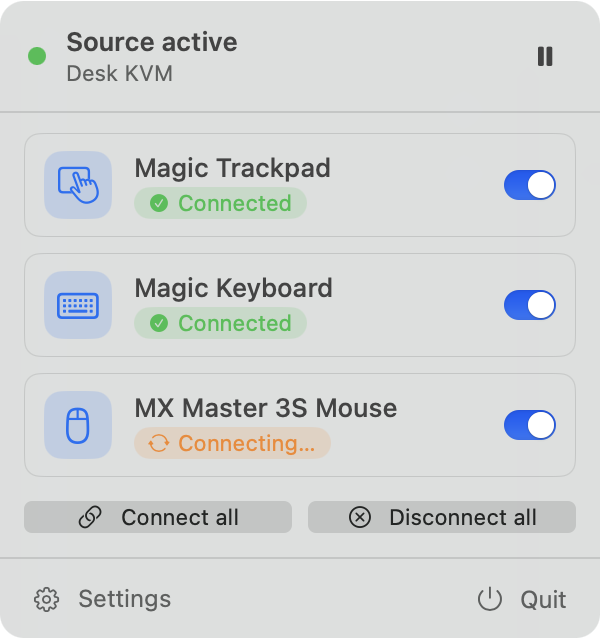
AutoSwitch KVM in the macOS menu bar: three devices, two connected, one connecting
On the Mac, it lives in the menu bar.
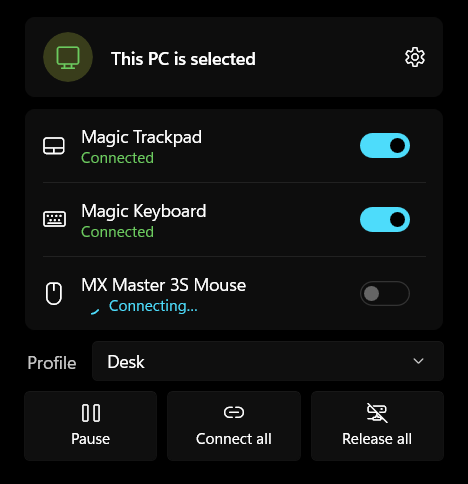
AutoSwitch KVM in the Windows tray: three devices, two connected, one connecting
On Windows, it lives in the tray.

The good stuff

Small app. Big sigh of relief.

  • Hands-off switching

    Devices connect when your computer is picked and step aside when it isn't. Nothing to click.

  • Handles the loyal ones

    Some devices only love one computer at a time. AutoSwitch unpairs on the way out and pairs on the way in.

  • Brings the whole gang

    Keyboard, mouse, trackpad: several devices at once, in your order, with profiles like "Desk" and "Travel".

  • Speaks Easy-Switch

    Logitech keyboards and mice change channel when AutoSwitch asks. It even reads which computer is on which channel.

  • Naps when you nap

    Your computer goes to sleep, your devices are released. It wakes, everything catches up.

  • Pause any time

    One click to pause, plus Connect all / Release all buttons and optional keyboard shortcuts.

  • Keeps itself fresh

    Updates download quietly in the background. Restart when it suits you.

  • Minds its own business

    No account, no analytics. The only thing it talks to is GitHub, to check for updates.

Download

Free. For both of your computers.

macOS

macOS 13 Ventura or later · Apple silicon & Intel

Download for Mac

Open the DMG and drag AutoSwitch KVM into Applications. The first launch gets blocked (we haven't bought Apple's fancy certificate yet): go to System Settings ▸ Privacy & Security and click Open Anyway. Then allow Bluetooth when it asks: without it, AutoSwitch can't reach your devices.

Windows

Windows 10 (1809+) or 11 · x64 · ARM64 here

Download for Windows

Run the installer, no admin needed. If SmartScreen says "Windows protected your PC", click More info ▸ Run anyway (same story: no fancy certificate yet).

Every version and its release notes are on GitHub Releases.

Questions

Good to know

Do I really need it on both computers?

Yes. A device like the Magic Trackpad can only be paired with one computer at a time, so the computer you're leaving has to let go before the other one can pair. Each copy handles its own side of that handoff.

Will it work with my KVM switch?

Very likely. It works with any KVM that switches USB between the computers, which is how almost all of them share your keyboard and mouse. AutoSwitch watches for the USB device (usually a hub inside the KVM) that appears and disappears with each switch.

Which Bluetooth devices work?

Devices that hold one pairing and accept the next computer once released, like the Apple Magic Trackpad, Keyboard and Mouse: those switch automatically, and so do Logitech Easy-Switch devices like the K380. Keyboards with their own host keys (ZMK) and game controllers can't be switched by any app; AutoSwitch tells you so when you add one, and shows their status. The device guide explains all four kinds.

Why does a switch take a few seconds?

The computer you switched to has to wait until the other one lets go of the device, and Bluetooth pairing itself takes a moment. AutoSwitch retries quietly until the device is free, so you don't have to.

Does it collect any data?

No. There's no account and no analytics. Your settings stay on your computer. The app only contacts GitHub to check for updates.

Is it really free?

Yes. The source code is on GitHub. Found a bug or have an idea? Open an issue.

Go on. Switch something.

Your keyboard, mouse and trackpad are ready to follow you around.

Get AutoSwitch KVM